Here is a step-by-step guide that teaches how to register a domain name that involves searching for a domain, checking its availability, creating a Qoxy account, providing the required registrant details, completing payment, and accessing the customer portal to manage their newly registered domain. It helps new users understand the full registration process from start to finish.
1. Go to QOXY.com
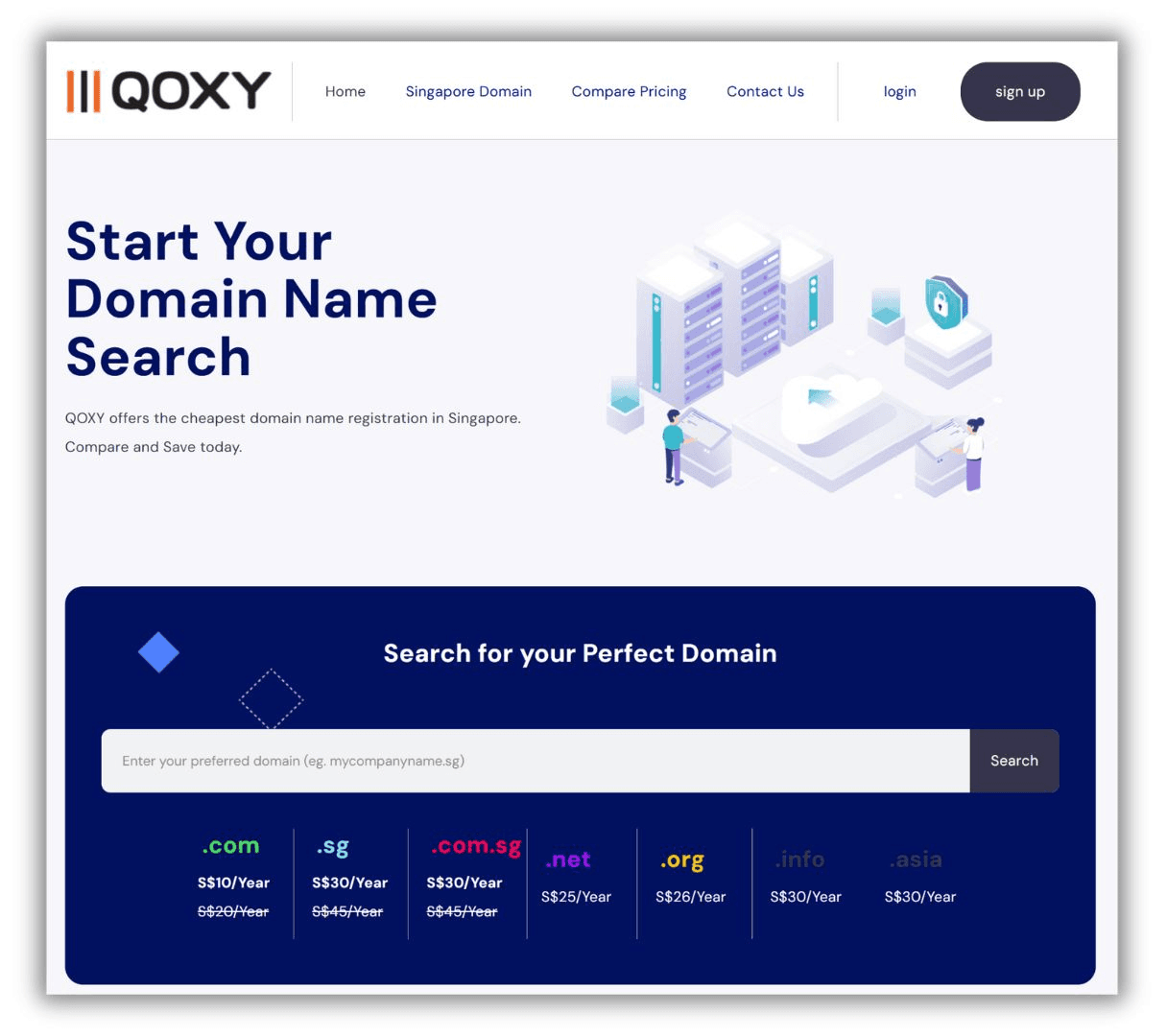
2. Enter your preferred domain name
Enter your preferred domain name you wish to register on the domain search bar.
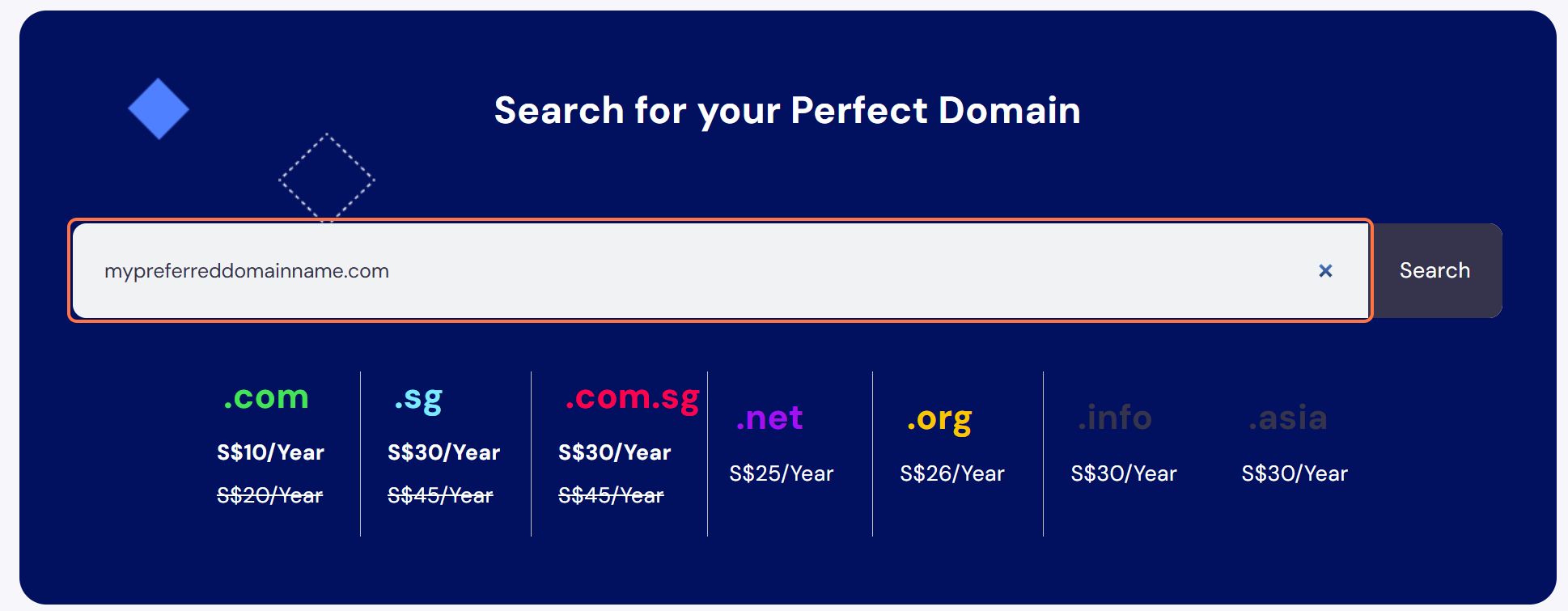
3. Click "Search"
Click "Search" and the system will begin to check the domain availability.
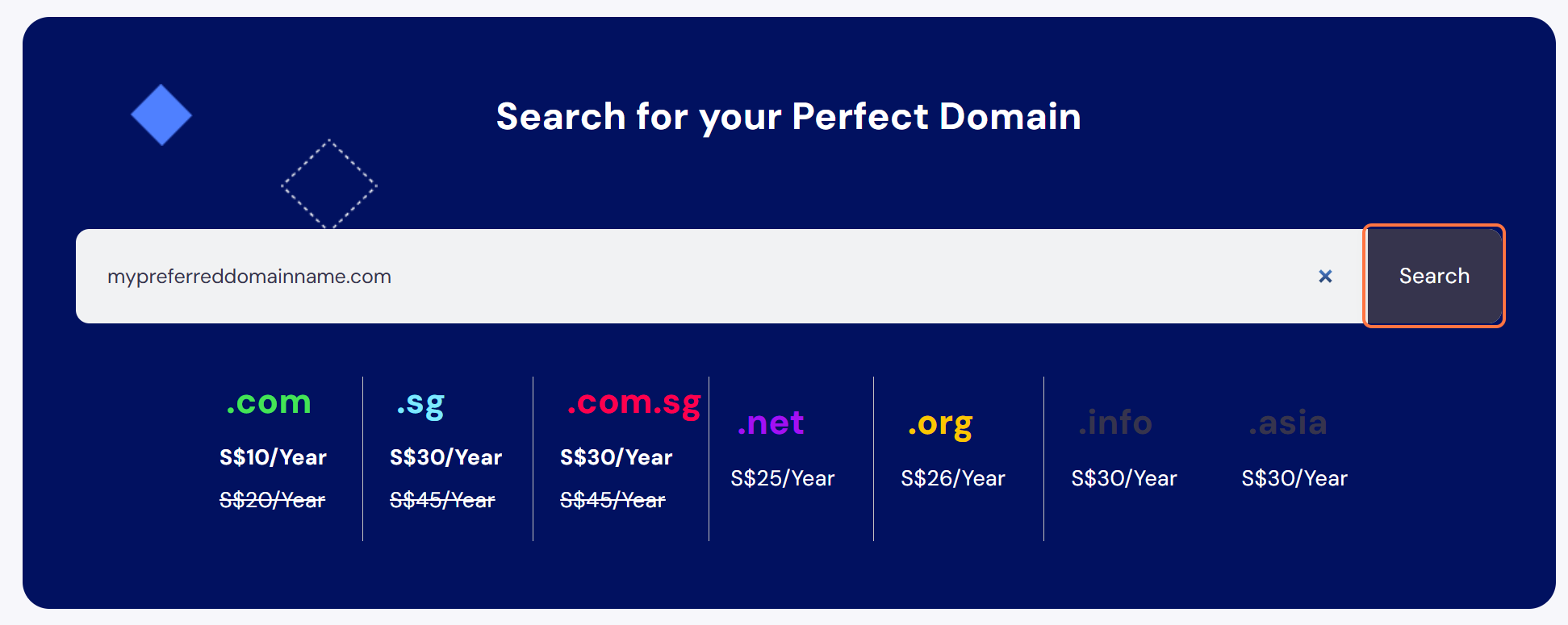
4. Check domain availability result
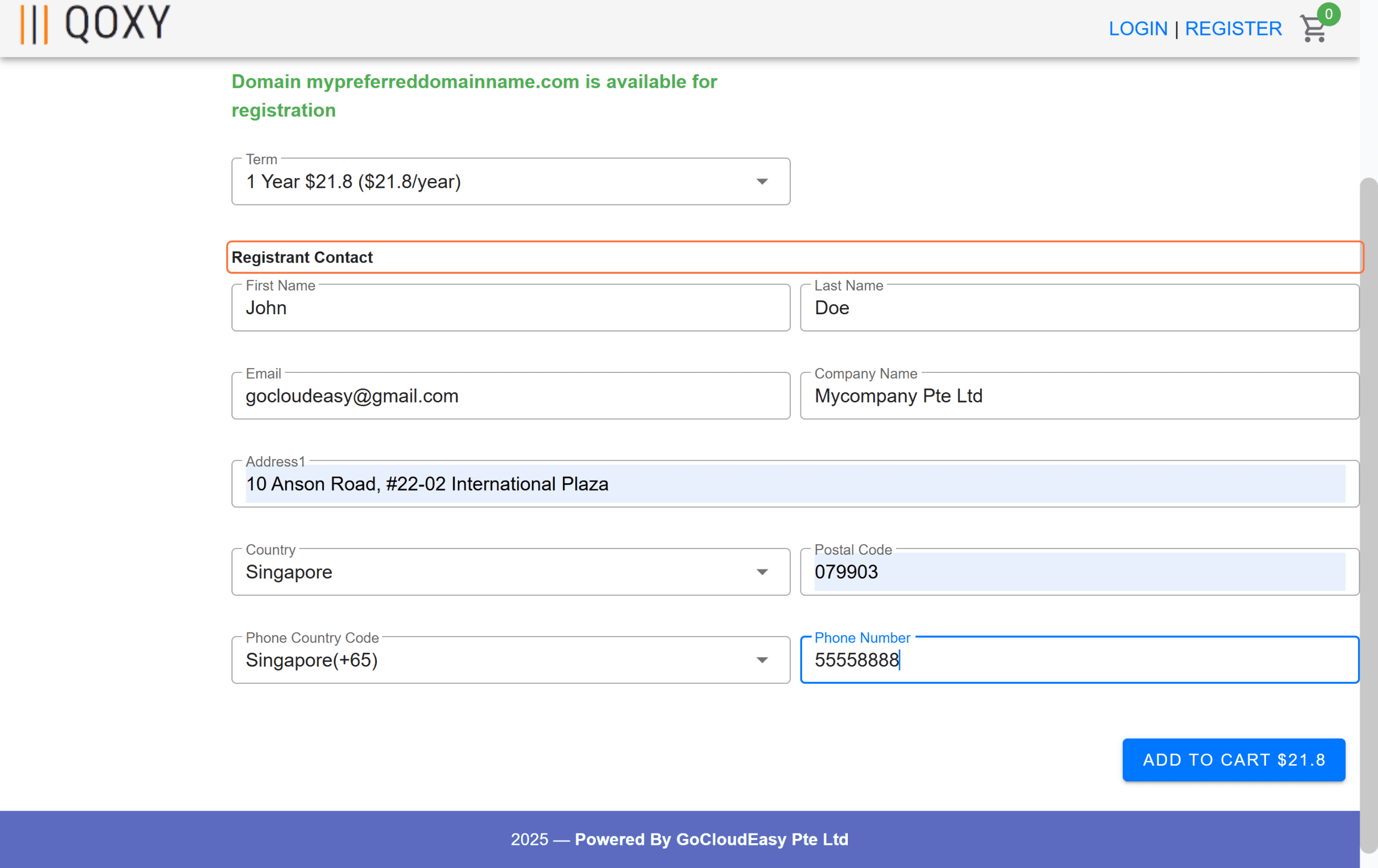
If the domain is available, you will see a green message: "Domain [domain.com] is available for registration". Next, you can go ahead to select the number of years you wish to secure. Default is 1 year.
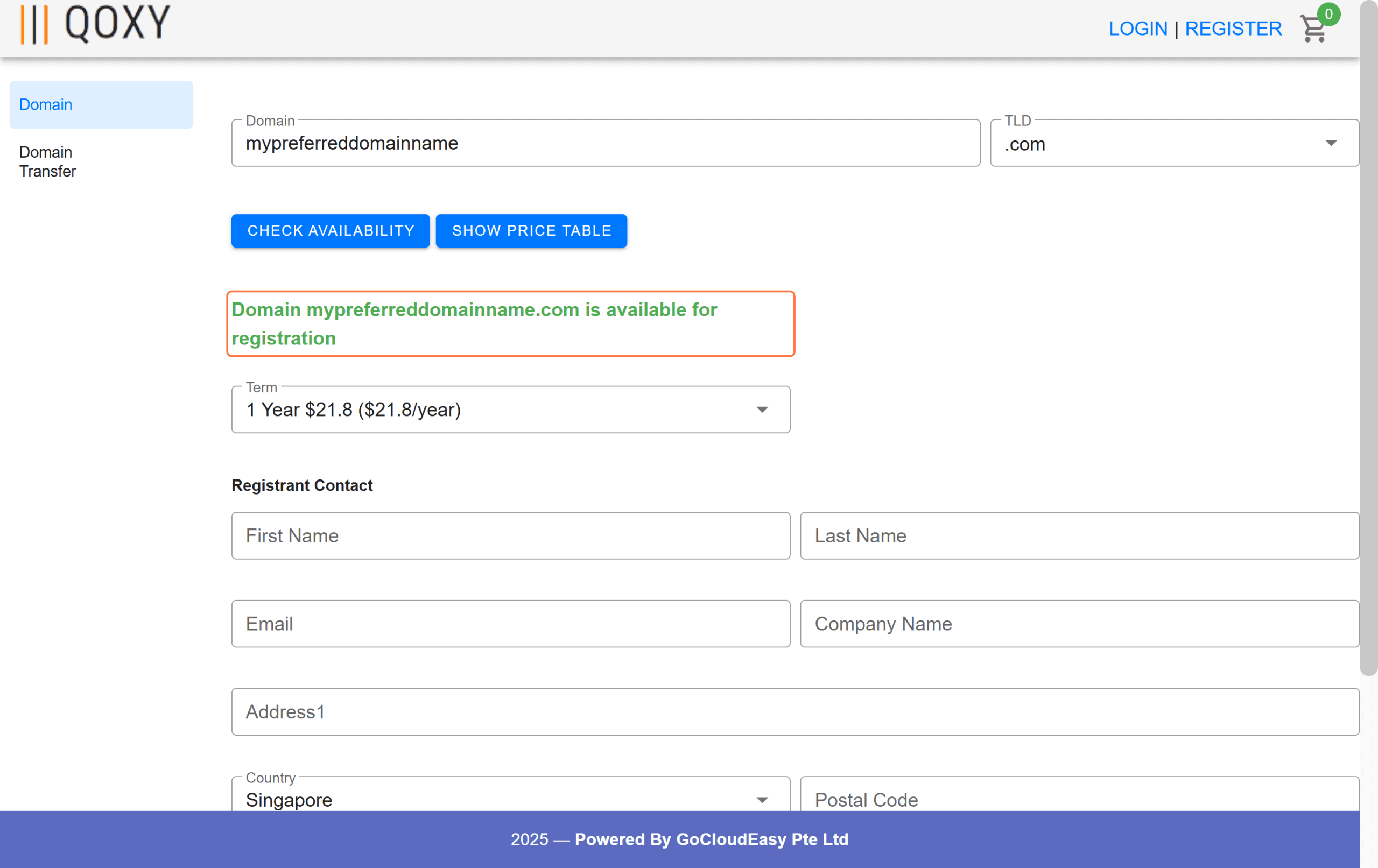
5. Fill in the registrant information
Proceed to fill in the registrant (owner) information exactly as required by the domain registry. Accurate business or individual details are mandatory — providing incorrect information may result in the domain being deregistered. The registrant contact must always reflect the actual legal owner of the domain name.
6. Add to cart
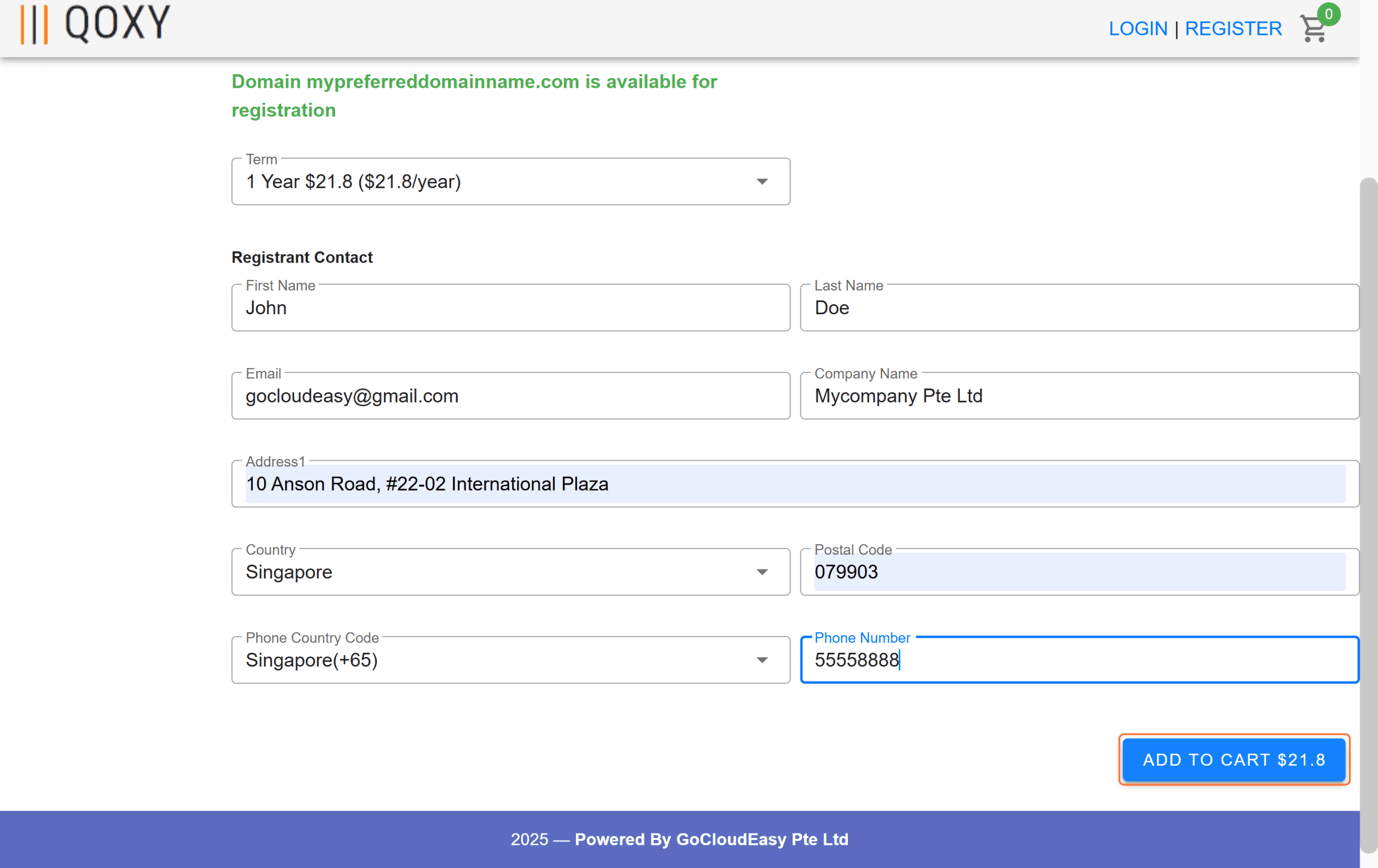
Once you have filled up the registrant contact, go ahead to click "Add To Cart" to proceed on to the next step.
7. Enter your email address at checkout
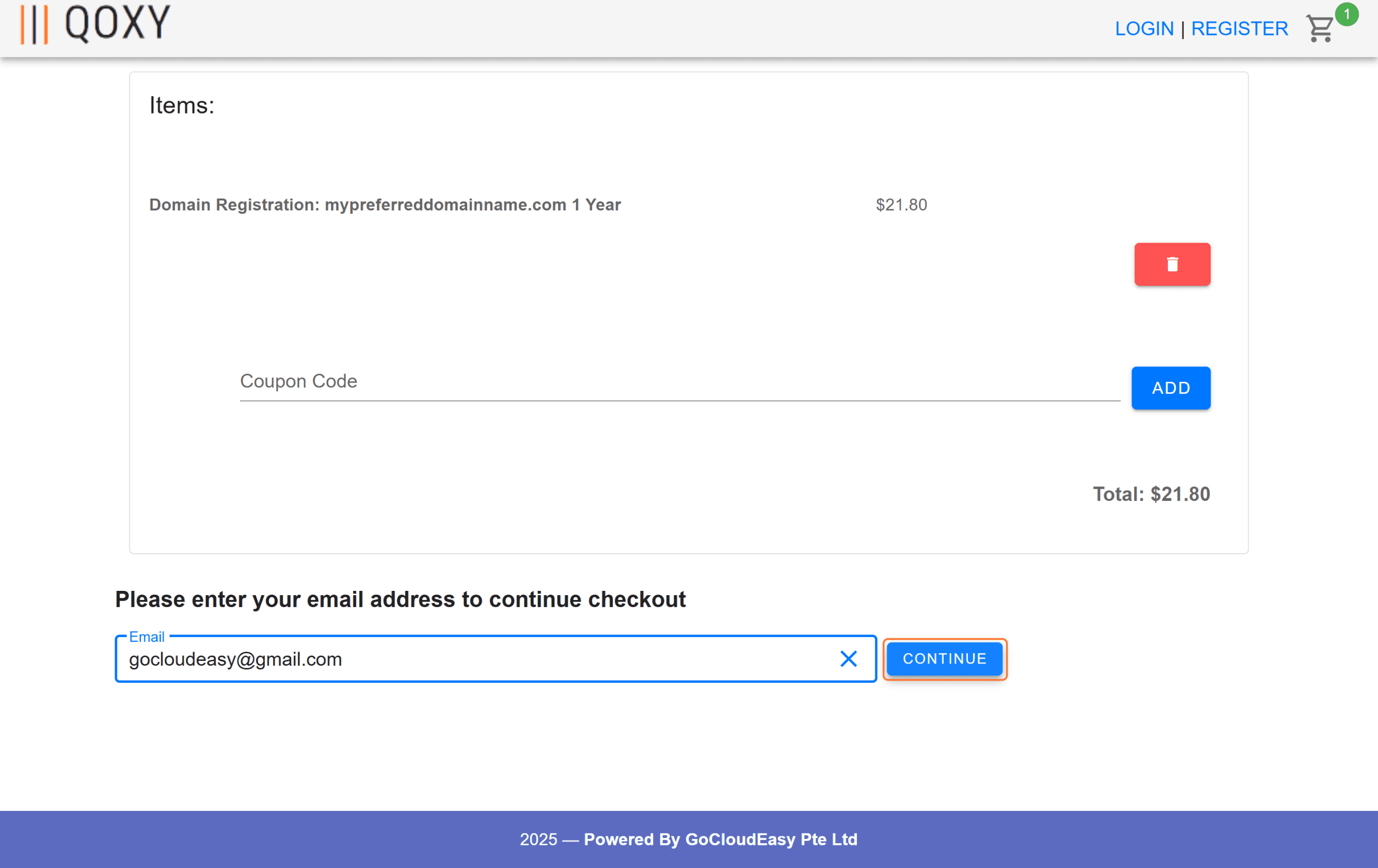
You will be lead to this checkout page. In this page, you'll be prompted to enter your email address before you can click "continue" to checkout.
Based on the email address you have entered, the Qoxy system will search for your email address in our records to see if it exists.
If it exists, the system will prompt you to login, so that the purchase can be tagged to your existing customer account with us.
Otherwise we will prompt you with a form to create an account.
8. Create your Qoxy account (if new)
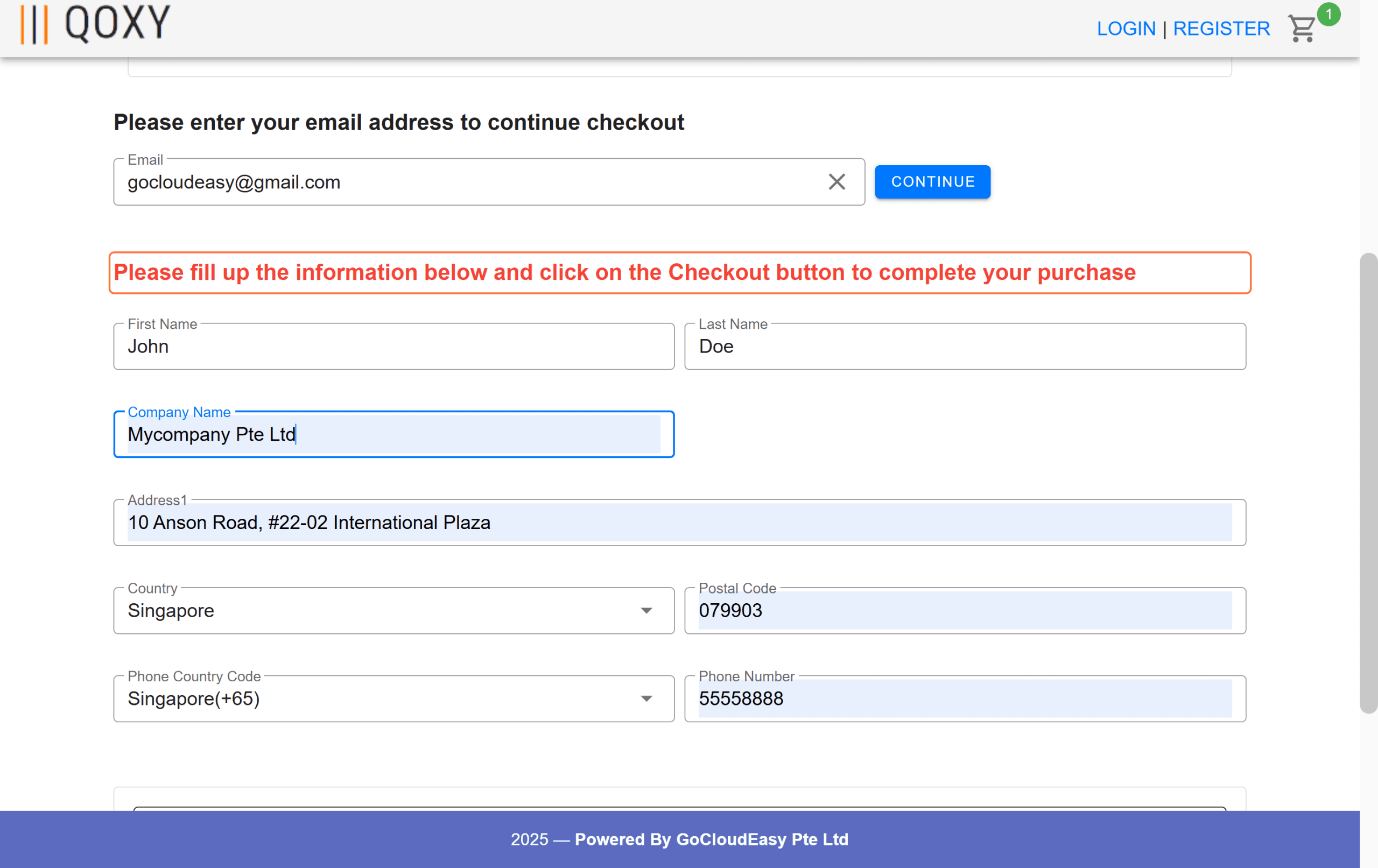
If you don't already have a Qoxy account, you'll be prompted to fill in your business or individual details to create one before completing your domain registration.
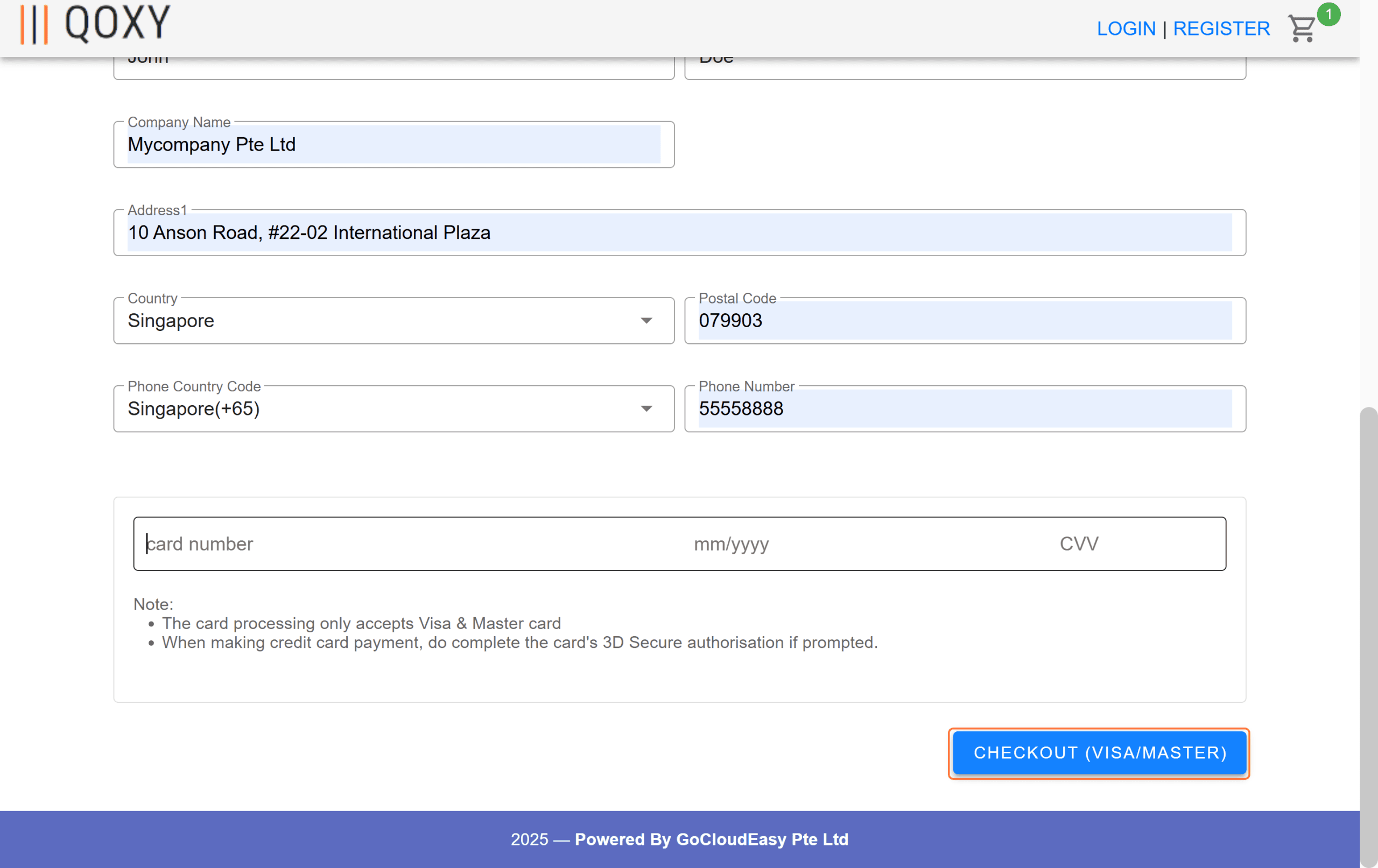
9. Complete payment
Once you have filled up your business or individual details, go ahead to enter your Visa/Master information to complete payment.
10. Registration confirmation
You will receive an email confirmation once your domain has been successfully registered.
In most cases for .com and .sg extension domain registrations, it will be instant after payment is made.
The notification will be sent to the email address you provided when creating your Qoxy account.
If additional information is required to complete the registration, our team will contact you through your registered mobile number or email.
If you have not received our email notification and would like to check the status of your domain registration, you may reach our support team through the contact form at /contact-us/
We typically respond within 30 minutes.
Manage your domain
To manage your newly registered domain, log in to the Qoxy customer portal at:
https://manage.qoxy.com/login/
Thank you for choosing Qoxy.com, your number 1 domain provider.